Connection Scope
After connecting a provider, configure which organisations and repositories to sync. Click the Configure button next to any connection to open the scope settings.
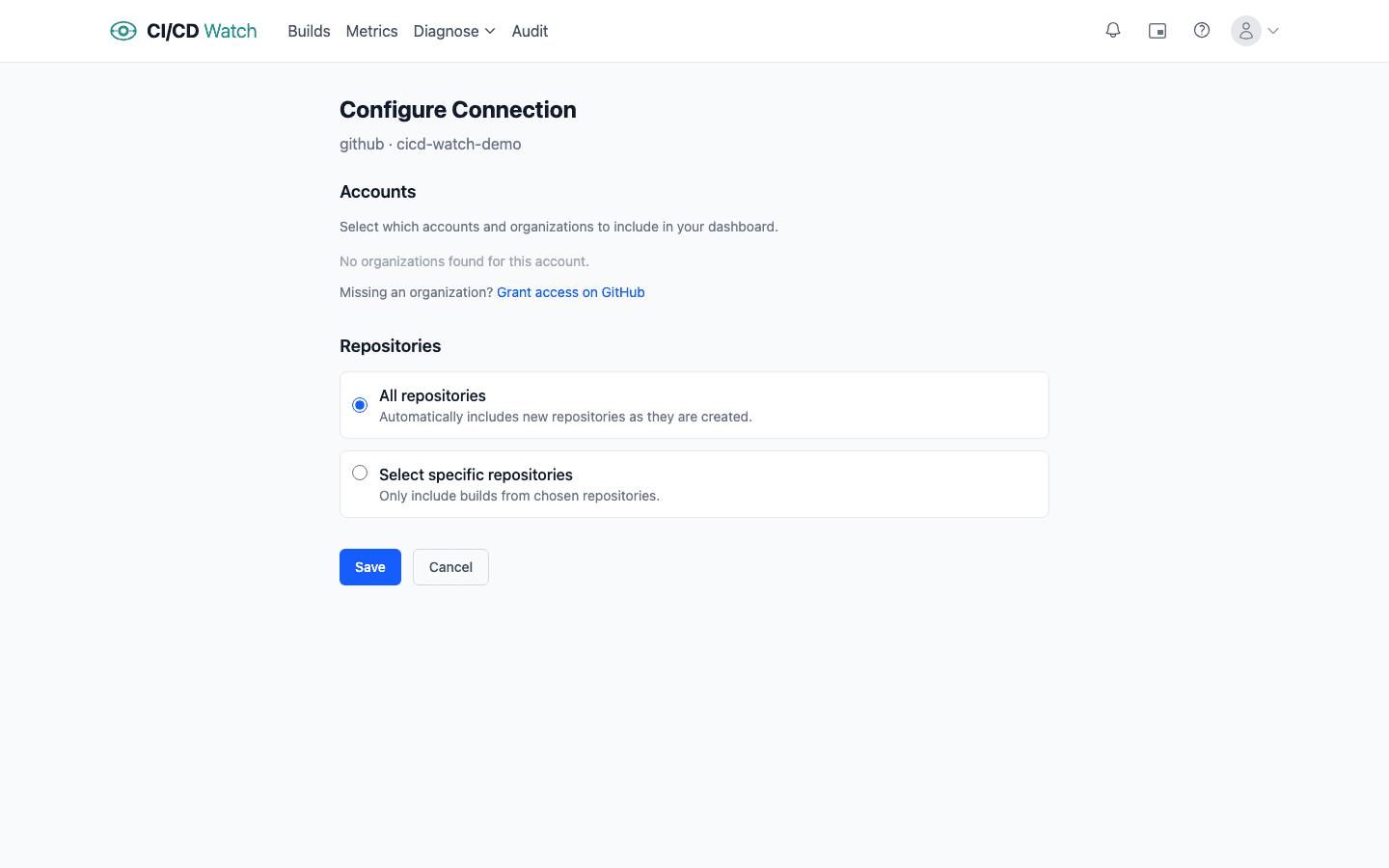
- Organisation selection
- Choose which organisations or accounts to include. Only repositories belonging to selected organisations will appear for syncing.
- Repository selection
- For each organisation you can sync all repositories (new repos are picked up automatically) or select specific repositories from a list. Repositories are grouped by organisation with select-all / deselect-all controls.
- Repository limits
- Your plan sets a maximum number of repositories per connection. A counter shows how many slots remain as you select repos. When a repo limit applies, the “All repositories” option is disabled, you must select specific repositories instead.
- What happens when you save
- Saving scope changes triggers an immediate sync for newly added repositories. Pipeline data typically appears within a few minutes depending on the provider and the number of recent runs. Removing a repository from scope stops future syncing but retains any data already collected.
- New repositories
- When “All repositories” is selected for an organisation, new repositories are detected automatically on each sync cycle. You don't need to revisit scope settings when adding repos to your GitHub org or GitLab group.